On this page
Introduction
Selenium is the grandfather of web automation. Despite modern challengers like Playwright, Selenium remains the industry standard for specific enterprise use cases, legacy browser support, and massive community resources.
This guide is an encyclopedic reference for Selenium with Python. We'll cover everything from the "Hello World" of opening a browser to handling complex IFrames, Shadow DOMs, and Explicit Waits.
1. Setup & Installation
You need the Selenium library and a "WebDriver" (a small program that controls your specific browser).
Install Library
pip install selenium webdriver-manager
Basic Template
Using `webdriver-manager` avoids manually downloading driver executables.
from selenium import webdriver
from selenium.webdriver.chrome.service import Service
from webdriver_manager.chrome import ChromeDriverManager
import time

# Auto-download and setup driver
service = Service(ChromeDriverManager().install())
driver = webdriver.Chrome(service=service)

driver.get("https://google.com")
print(driver.title)

time.sleep(2) # Keep open for a bit
driver.quit()
2. Basic Navigation
# Open a URL
driver.get("https://example.com")

# Refresh
driver.refresh()

# Back & Forward
driver.back()
driver.forward()

# Get Current Info
url = driver.current_url
title = driver.title
source = driver.page_source

# Windows / Tabs
driver.maximize_window()
driver.fullscreen_window()
3. Finding Elements
Selenium 4 uses the By class for everything.
Locator Strategies
from selenium.webdriver.common.by import By

# ID (Fastest)
el = driver.find_element(By.ID, "username")

# Name
el = driver.find_element(By.NAME, "q")

# Class Name
el = driver.find_element(By.CLASS_NAME, "btn")

# CSS Selector (Powerful)
el = driver.find_element(By.CSS_SELECTOR, "div#main > p.intro")

# XPath (Most Flexible)
el = driver.find_element(By.XPATH, "//button[text()='Submit']")
Multiple Elements
# Returns a LIST of elements
links = driver.find_elements(By.TAG_NAME, "a")

print(f"Found {len(links)} links")

for link in links:
    print(link.get_attribute("href"))
4. Interacting with the Page
from selenium.webdriver.common.keys import Keys

element = driver.find_element(By.ID, "search")

# Typing
element.send_keys("Python Automation")

# Special Keys (Enter, Tab, etc.)
element.send_keys(Keys.RETURN)

# Clicking
btn = driver.find_element(By.ID, "submit-btn")
btn.click()

# Clearing Input
element.clear()

# Getting Text
text = driver.find_element(By.TAG_NAME, "h1").text

# Checking State
is_visible = element.is_displayed()
is_enabled = element.is_enabled()
is_selected = element.is_selected() # Checkboxes
5. Handling Waits (The #1 Problem)
Most scripts fail because the element hasn't loaded yet. Do NOT use time.sleep() unless debugging. Use Explicit Waits.
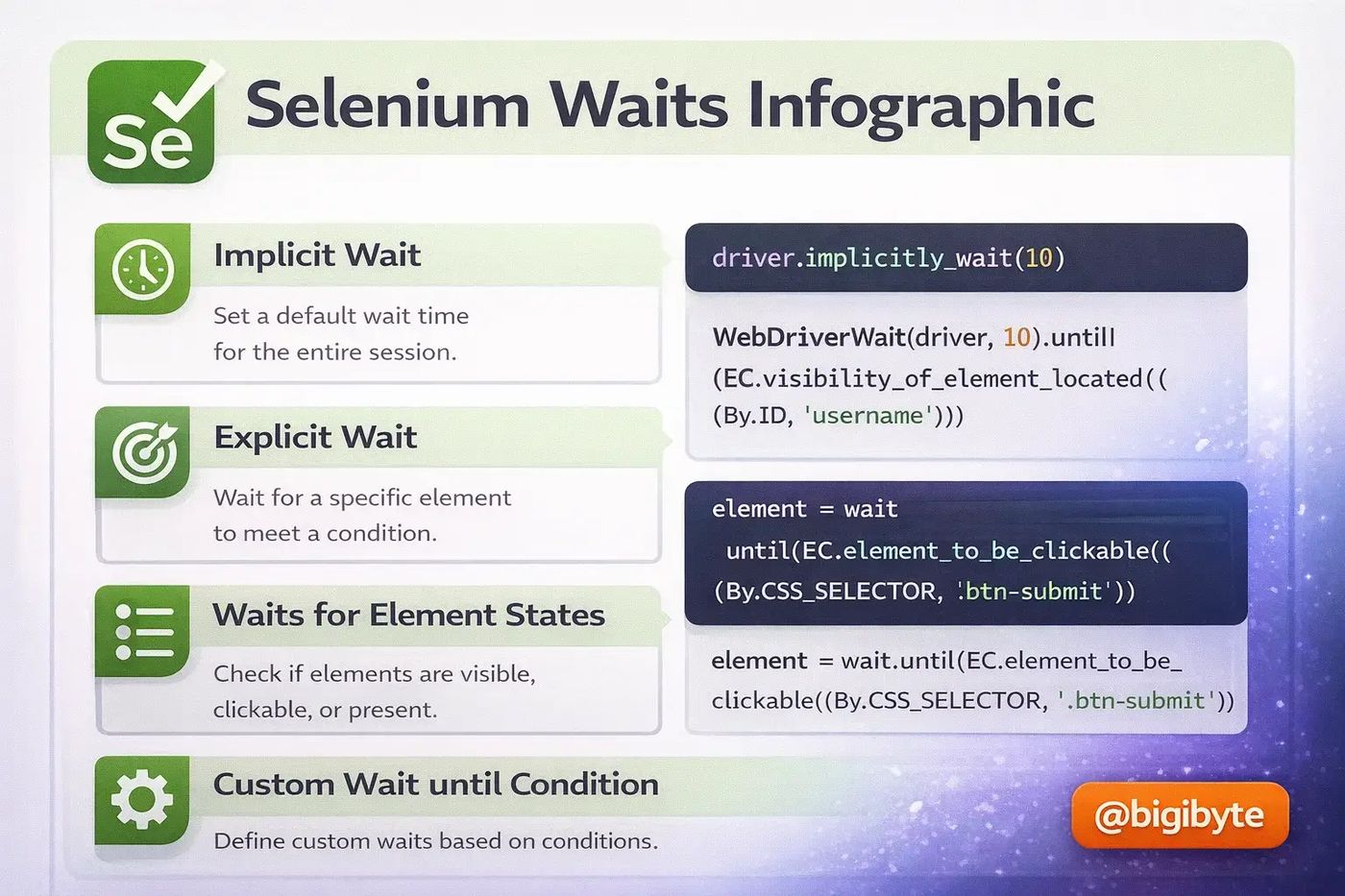
Visual Guide: Implicit vs Explicit Waits
Explicit Wait (Best Practice)
from selenium.webdriver.support.ui import WebDriverWait
from selenium.webdriver.support import expected_conditions as EC

# Wait up to 10 seconds
wait = WebDriverWait(driver, 10)

# Wait until element is CLICKABLE
btn = wait.until(EC.element_to_be_clickable((By.ID, "submit")))
btn.click()

# Wait until element is VISIBLE
msg = wait.until(EC.visibility_of_element_located((By.CLASS_NAME, "success")))
print(msg.text)
6. Advanced Tricks
Dropdowns & Alerts
from selenium.webdriver.support.ui import Select

# Select Dropdown
select = Select(driver.find_element(By.ID, "country"))
select.select_by_visible_text("USA")

# Handling Alerts
alert = driver.switch_to.alert
print(alert.text)
alert.accept() # Click OK
IFrames & Tabs
# Switch to IFrame
driver.switch_to.frame("frame_id")
# ... interact inside frame ...
driver.switch_to.default_content() # Go back

# Switch Tabs
driver.switch_to.window(driver.window_handles[1]) # 2nd Tab
driver.close() # Close current tab
Action Chains (Drag & Drop, Hover)
from selenium.webdriver import ActionChains

actions = ActionChains(driver)

menu = driver.find_element(By.ID, "menu")
submenu = driver.find_element(By.ID, "submenu")

# Hover interactions
actions.move_to_element(menu).click(submenu).perform()

# Drag and Drop
source = driver.find_element(By.ID, "drag")
target = driver.find_element(By.ID, "drop")
actions.drag_and_drop(source, target).perform()
7. Headless Mode & Screenshots
from selenium.webdriver.chrome.options import Options

options = Options()
options.add_argument("--headless=new") # Run in background
options.add_argument("--window-size=1920,1080")

driver = webdriver.Chrome(options=options)
driver.get("https://example.com")

# Take Screenshot
driver.save_screenshot("proof.png")

# Full Page Screenshot (Chrome specific hack)
driver.execute_cdp_cmd("Page.captureScreenshot", {"format": "png", "captureBeyondViewport": True})
Frequently asked questions
Selenium vs Playwright?
Playwright is generally faster, less flaky, and has built-in auto-waiting. However, Selenium supports more browsers (like Safari on Windows via Remote) and has a larger ecosystem of legacy tutorials.
How to handle Captchas?
Selenium cannot solve Captchas natively. You need to use 3rd party APIs (like 2Captcha) or manual intervention. Using `undetected-chromedriver` can help bypass bot detection.
Why does my element click fail?
Usually because another element (like a cookie banner) is covering it, or the element hasn't loaded yet. Use `EC.element_to_be_clickable` wait or execute JavaScript click: `driver.execute_script('arguments[0].click();', element)`.

 MD Kawsar· January 18, 2026 · 9 min read