
On this page
Introduction
TL;DR
Run in CMD: for /f "delims=" %d in ('dir /s /b /ad ^| sort /r') do rd "%d" 2>nul
After deleting files or uninstalling programs, you're left with empty folder skeletons cluttering your drives.
Manually finding and deleting them is tedious. Let CMD do the work in seconds.
Simple Method (Current Folder Only)
This command removes empty folders in your current directory (not subfolders).
1Navigate to Target Folder
Open CMD in the folder you want to clean. Click the address bar, type cmd, and press Enter.
2Run the Command
How It Works
The rd command fails on non-empty folders. 2>nul hides those error messages.
Recursive Method (All Subfolders)
This powerful command finds and removes ALL empty folders in the entire folder tree.
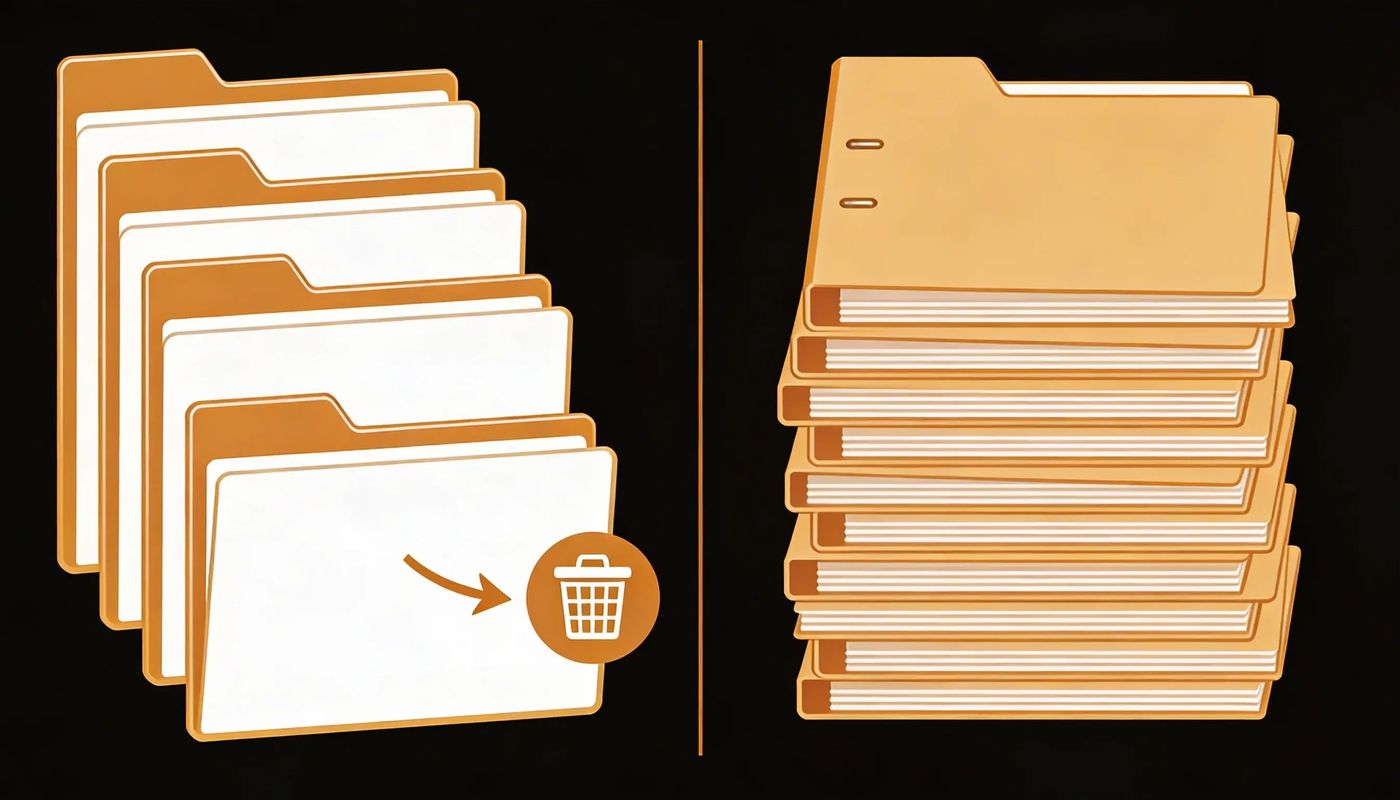
(silently removes empty folders from deepest to shallowest)
PowerShell Alternative
PowerShell is cleaner and easier to read:
Safety Tips
Test First
Run on a test folder before your important directories. Create some empty folders and verify they're removed correctly.
Avoid System Folders
Don't run this on C:\Windows or C:\Program Files. Some programs expect empty folders to exist.
No Recycle Bin
Folders removed by rd bypass the Recycle Bin. They're gone permanently.
Frequently asked questions
Why use sort /r in the command?
It sorts folders in reverse alphabetical order, which typically means deeper paths first. You must delete child empty folders before parents, or the parent won't appear empty yet.
Can I undo this?
No. Once deleted with rd, folders are gone. If the folder contained hidden files (like .DS_Store on Mac or desktop.ini on Windows), those are deleted too.
Why do some empty folders not get deleted?
They may contain hidden or system files. Add -Force to PowerShell commands to see hidden items.


 MD Kawsar· January 18, 2026 · 4 min read