
Introduction
TL;DR
Run in PowerShell: Get-ChildItem -Recurse | Sort-Object Length -Descending | Select-Object -First 20 Name, Length
Your disk is almost full, and Windows is nagging you to clean up. But where are all your gigabytes going?
Third-party tools like WinDirStat work, but they're slow and require installation. The built-in command line can find your largest files in seconds.
CMD Method (Quick)
The classic Command Prompt can list files sorted by size. It's not as powerful as PowerShell, but works on all Windows versions.
1Open CMD as Administrator
Search "cmd" in Start Menu, right-click, and select "Run as administrator". This lets you scan protected folders.
2Run the Size Command
Note
This command is slow on large drives. PowerShell below is much faster.
PowerShell Method (Recommended)
PowerShell is faster and gives you more control over the output format.
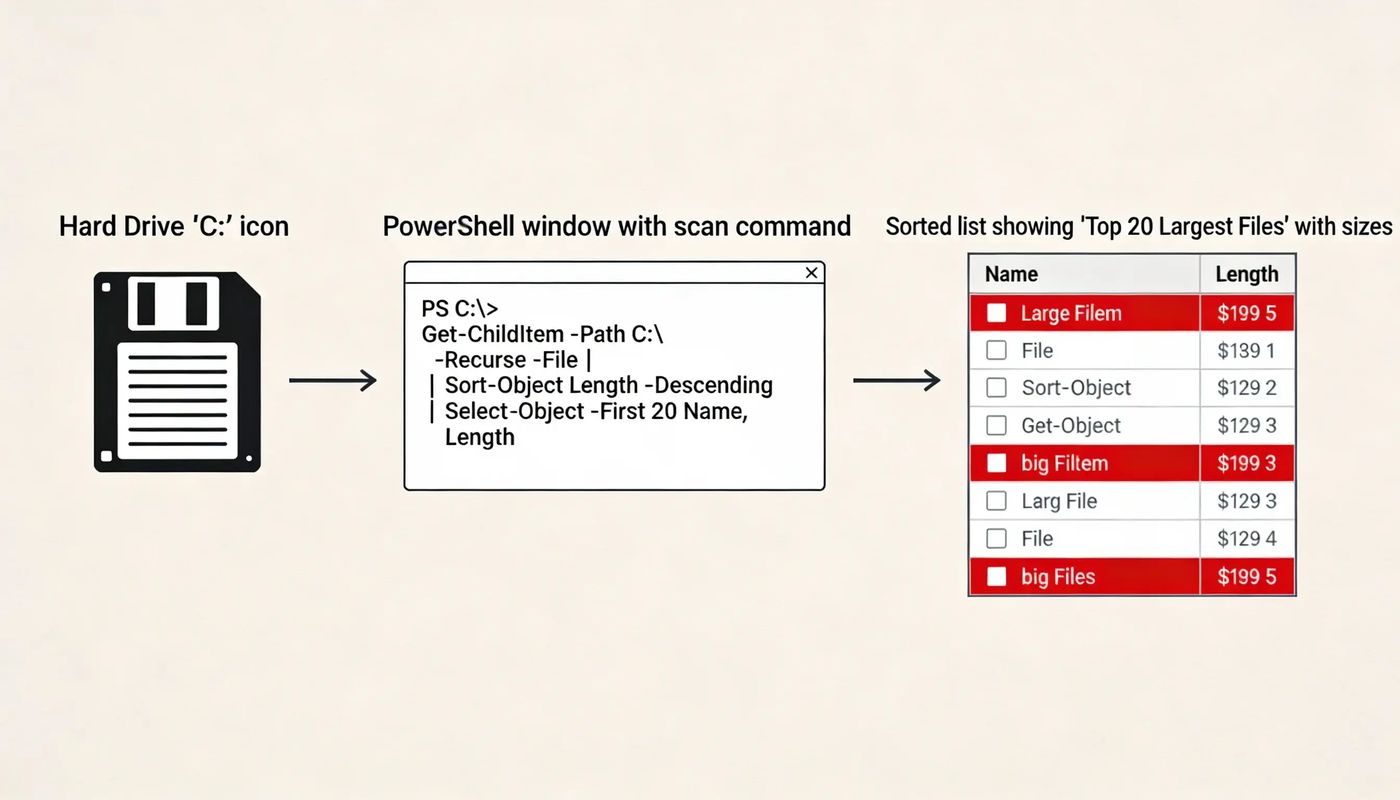
Find Top 20 Largest Files
-------- --------
4.2 C:\Users\You\Downloads\game.iso
2.8 C:\Windows\MEMORY.DMP
1.5 C:\hiberfil.sys
...
Find Files by Extension
Looking for large video files specifically?
Common Space Hogs
Downloads Folder
Old installers, ISOs, and zip files pile up here. Check C:\Users\YourName\Downloads
Windows Temp Files
Run %temp% in the Run dialog and delete old files. Also check C:\Windows\Temp
Windows.old Folder
After Windows updates, this can hold 20+ GB of old system files. Use Disk Cleanup to remove safely.
Frequently asked questions
Why does the scan take so long?
Scanning every file on a drive with millions of files takes time. For faster results, target specific folders like C:\Users instead of scanning the entire C:\ drive.
Is it safe to delete large files I find?
Be careful with system files (hiberfil.sys, pagefile.sys, Windows folders). Focus on your personal folders like Downloads, Documents, and game installations.
Can I export the results to a file?
Yes! Add `| Out-File large_files.txt` at the end of any PowerShell command to save results to a text file.

 MD Kawsar· January 18, 2026 · 4 min read