
On this page
Introduction
TL;DR
Open CMD in your folder, type copy *.csv combined.csv, and hit Enter. That's it.
We've all been there: You export data from a tool, and instead of one clean file, you get 50 separate CSV files—one for each day, user, or region.
Opening them one by one in Excel to copy-paste is a nightmare. Python scripts are powerful but take time to write. Surprisingly, the fastest solution is already built into your computer: Windows Command Prompt (CMD).
The 1-Second Method (Simple)
This method merges all CSV files blindly. It's perfect if your files don't have headers, or if you don't mind removing extra headers later.
1Prepare Your Files
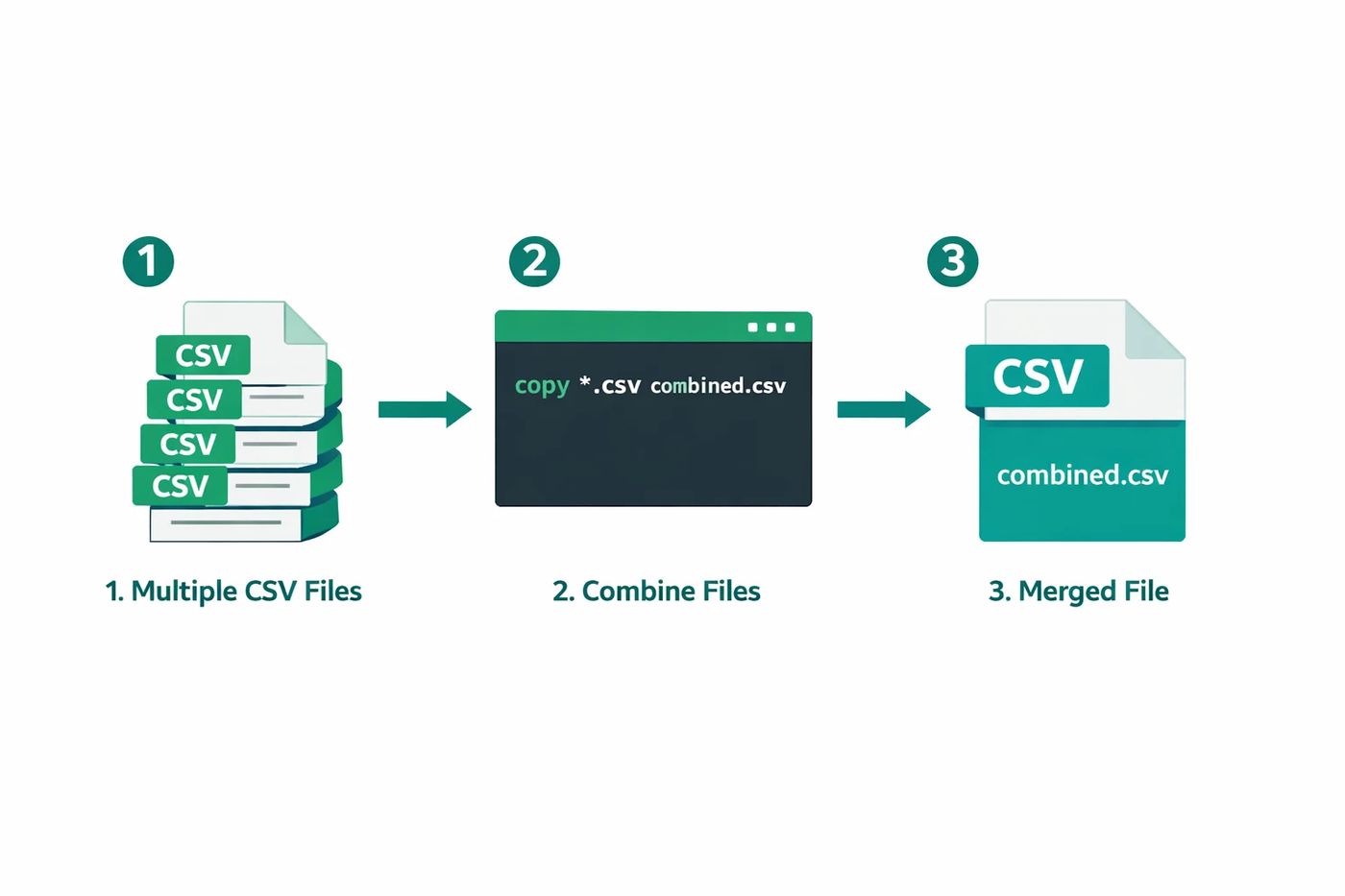
Move all the CSV files you want to merge into a single folder. Make sure there are no other CSV files there that you don't want to include.
2Open CMD in Folder
Click the address bar of your folder, type cmd, and press Enter. This opens the black terminal window directly tailored to this folder.
3Run the Magic Command
sales_feb.csv
sales_mar.csv
sales_apr.csv
1 file(s) copied.
You will now see a new file named combined.csv in that folder containing all your data.
Advanced Method (Handling Headers)
The simple method has a flaw: if your CSVs have headers (e.g., "Name, Date, Price"), they will be repeated throughout your merged file.
The Header Problem
You'll end up with rows like "Name, Date, Price" appearing in the middle of your data every time a new file starts.
To fix this without coding, you can use a slightly more complex command that imports the first file complete with header, then appends the rest skipping the first line.
*Note: Doing this purely in CMD is tricky. The cleanest "No-Code" way is actually to merge first, then filter out the header rows in Excel.*
The "Excel Filter" Fix:
- Run the
copy *.csv combined.csvcommand. - Open
combined.csvin Excel. - Turn on Filter (Ctrl+Shift+L).
- Filter the "Date" column (or any main column) to show only the value "Date" (your header text).
- Delete all the visible rows except the very top one.
- Turn off Filter. Done!
Troubleshooting & Tips
Weird Characters in Excel?
CMD uses ASCII encoding by default. If your CSVs have special characters (accents, emojis), use the /b (binary) switch:copy *.csv combined.csv /b
"Access Denied"?
Make sure no CSV files are currently open in Excel. Excel locks the file, preventing CMD from reading it.
Frequently asked questions
Will this work on Mac?
No, this is a Windows CMD command. On Mac/Linux terminal, you would use: cat *.csv > combined.csv
Is there a limit to how many files I can merge?
Practically, no. We have tested this with 10,000+ small files. The only limit is your hard drive speed and available space.
Can I undo this?
The command creates a NEW file (combined.csv). Your original files remain untouched, so it is completely safe to try.


 MD Kawsar· January 18, 2026 · 4 min read